



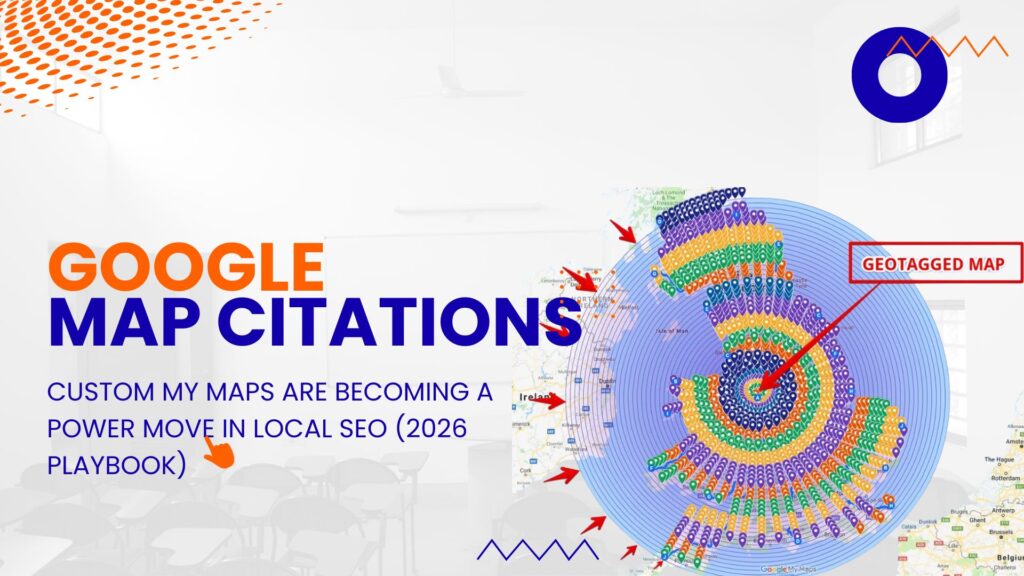
In the fast-moving world of local SEO, citations are one of those fundamentals that quietly do a lot of heavy lifting. Simply put, a citation is any online mention of your business’s Name, Address, and Phone number (NAP)1 . These mentions help Google understand that your business is real, active, and relevant to people searching locally. The more consistent and credible your citations are, the more confident Google becomes in showing your business in search results and on Google Maps.
With Google My Business now rebranded as Google Business Profile (GBP) , Google My Maps Citation matter more than ever. Google relies on them as trust signals. When your business details appear accurately across maps, directories, and websites, it reinforces your legitimacy and strengthens your local presence.
This guide breaks down Google Map citations in a practical, easy-to-understand way. You’ll learn why they’re important for GBP and local SEO, and how to create custom maps using Google My Maps . By using multiple layers, markers, and directions, you can build bulk map-based citations that support better local visibility. These custom maps let you showcase business locations, service areas, or even nearby points of interest, all of which can act as additional citation sources when shared or embedded online.
For businesses with multiple locations, or those looking to expand their digital footprint, this approach is especially effective. Custom Google My Maps aren’t just helpful for organisation and navigation—they also create structured, shareable content that can link back to your Google Business Profile.
As of 2026, Google continues to prioritise local relevance and user-generated content. By thoughtfully integrating custom maps into your local SEO strategy, you’re not just ticking a box—you’re building trust, improving visibility, and giving your business a clear edge in competitive local markets.
Understanding Google Map Citations and Their Role in Local SEO
What are citations, really?
At a high level, citations are online references to your business’s Name, Address, and Phone number (NAP) . Think of them as digital trust signals scattered across the internet. Every accurate mention helps Google connect the dots and confidently say, “Yes, this business is legit.”
Citations usually fall into two buckets:
Structured citations
These are official listings on platforms like business directories, review sites, and map services. They follow a fixed format and often include more than just NAP—things like business hours, website links, categories, and photos. Because they’re clean, organised, and easy for search engines to read, structured citations carry serious weight for local SEO.
Unstructured citations
These are more organic mentions of your business on blogs, news articles, forums, or social media. They don’t follow a strict template, but they still matter because they show real-world relevance and brand presence. Even a casual mention in a local blog can reinforce your authority in a specific area.
From a local SEO standpoint, citations help Google verify two critical things: existence and consistency . If your NAP details are mismatched across platforms—say, different spellings, old phone numbers, or address variations—it creates confusion and can quietly drag your rankings down. On the flip side, a strong, consistent citation profile builds prominence , which is one of Google’s three core local ranking factors, alongside relevance and distance.
Bottom line: citations aren’t flashy, but they’re foundational. Get them right, keep them consistent, and they become a scalable asset that supports stronger visibility on Google Search and Google Maps.
Why Focus on Google Map Citations?
Google Map citations are all about visibility where it actually matters—Google Search and Google Maps. These citations are directly connected to your Google Business Profile (GBP), which is the core asset powering map results, location-based searches, and the local pack (aka the top 3 businesses that show up with the map).
Your GBP listing is the anchor citation. Everything else you do should reinforce it. When you build additional Google-linked citations—like custom maps using Google My Maps—you’re essentially giving Google more geo-specific context about your business. More context = more confidence = better rankings. Simple math.
Here’s why doubling down on Google Map citations is a smart move:
- Improved local rankings: Consistent, location-backed citations increase your chances of showing up in the Google Maps 3-pack.
- Increased trust signals: Google prefers businesses that are mentioned accurately and repeatedly across its own ecosystem.
- Better user experience: Custom maps with pins, routes, and service areas make it easier for customers to find you without friction.
- Scalability for multi-location brands: If you’re running multiple branches, My Maps lets you create and manage citations at scale without chaos.
Industry studies and local SEO experts consistently point out that businesses with 50+ high-quality citations tend to outperform competitors in local search. It’s not about spam—it’s about structured consistency.
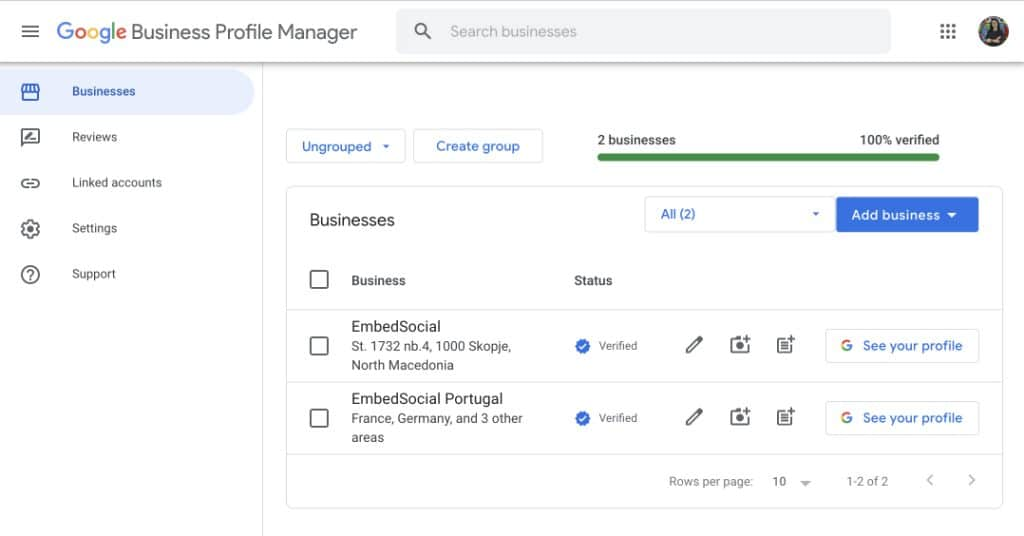
From here, you can monitor performance metrics like views and clicks, which tie back to your citation efforts.
Building Traditional Citations for Local SEO
To really maximise the impact of your Google Business Profile, you need strong supporting citations across the wider web. Think of these as reinforcement signals—each accurate listing tells Google the same story about your business, which strengthens trust and visibility.
Start by locking in the basics.
Core directories
These are non-negotiable. Platforms like Bing Places, Apple Maps, Yelp, and Facebook act as foundational data sources for search engines and apps. Submit your business with identical NAP details on each one. No shortcuts here—consistency is the KPI.
Industry-specific platforms
Next, go niche. If you’re a restaurant, listings on sites like TripAdvisor matter more than generic directories. Medical practices benefit from platforms like Healthgrades. These citations carry higher relevance, which directly supports better local rankings.
Local and regional directories
Local business directories, Yellow Pages, and Chamber of Commerce listings help reinforce geographic relevance. Tools such as BrightLocal can also distribute your data at scale while keeping things organised.
Citation management tools
Platforms like Moz Local or Yext are clutch for governance. They scan the web for inconsistent listings, flag errors, and push updates across multiple directories—huge time-saver, especially for growing brands.
Best Practices That Actually Move the Needle
- Stay obsessively consistent with your NAP. Pick one format and stick to it everywhere (for example, always “St.” instead of “Street”).
- Link back to your Google Business Profile wherever possible. It adds contextual backlink value and reinforces your primary citation.
- Enhance listings with photos and descriptions, using keywords naturally—no stuffing, no cringe.
From a strategy standpoint, aim for 20–50 high-quality citations in the early phase. This isn’t a volume game. Quality, relevance, and accuracy outperform random mass submissions every single time.
Advanced Tutorial: Creating Custom Google My Maps for Citations
Google My Maps is a seriously underrated asset in local SEO. At its core, it’s a free tool that lets you build custom, interactive maps—but strategically used, it doubles up as a citation booster. When you plot business locations, service areas, or related points of interest, you’re reinforcing your NAP data and geo-signals in a way Google actually understands.
These custom maps can be:
- Embedded on your website
- Shared across social platforms
- Linked from blogs or directory listings
All of this creates additional, Google-owned assets that quietly support your local SEO stack. For multi-location businesses, this is especially scalable and clean.
Step 1: Getting Started with Google My Maps
First things first—set up your map.
- Log in to your Google account.
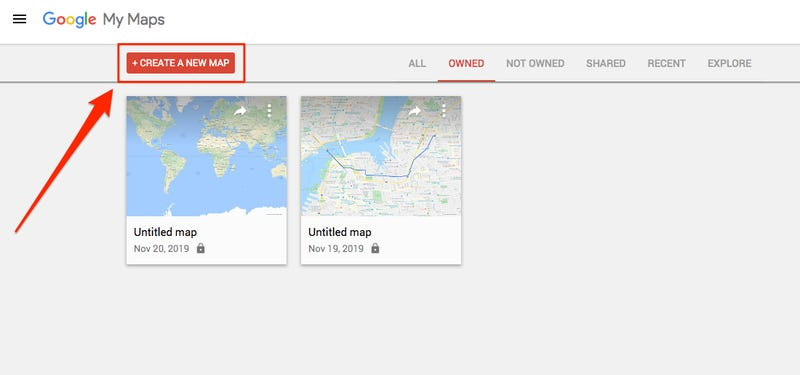
- Head to mymaps.google.com.
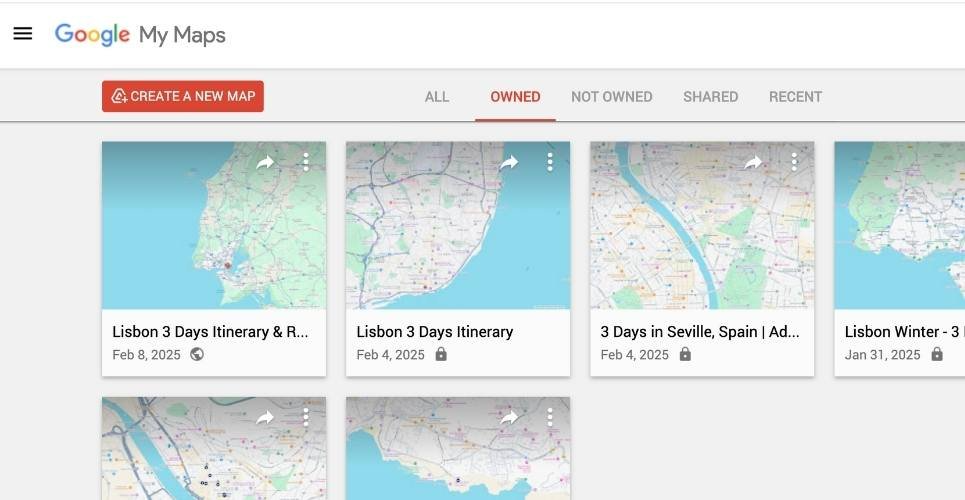
- Click “Create a new map.”
You’ll land on an untitled map with a base layer already loaded. This is your blank canvas—think of it as infrastructure, not design. You’re about to layer location intelligence on top of it.
- Edit the map title (e.g., “My Business Locations and Service Areas”) and description, including your NAP for citation value.
Step 2: Adding Multiple Layers
Layers organize your map data, allowing you to separate categories like “Store Locations,” “Service Areas,” or “Partner Sites.”
- Click “Add layer” in the left panel.
- Rename the layer by clicking its title (e.g., “Primary Locations”).
- Repeat to add more layers (up to 10 per map).
This structure is ideal for multi-location businesses, where one layer could hold retail stores and another delivery zones.
Step 3: Adding Points (Markers)
Points represent specific locations, such as business addresses or points of interest.
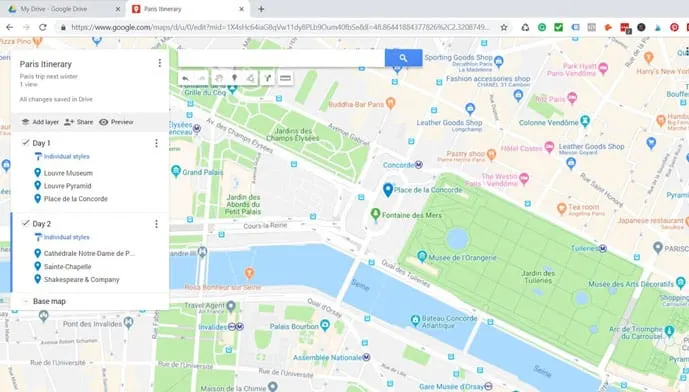
- In a layer, use the search bar to find an address or click the marker icon below it.
- Click on the map to drop a pin, or search for a place and select “Add to map.”
- Edit the marker: Add a title, description (include NAP and keywords), and customize the icon/color.
- For bulk addition: Click “Import” in the layer menu. Upload a CSV, XLSX, or KML file with columns for latitude/longitude or addresses. Select relevant columns for location and titles.
Example: Import a CSV with multiple business locations to create bulk citations.
A screenshot of adding layers and markers:
Step 4: Adding Directions and Routes
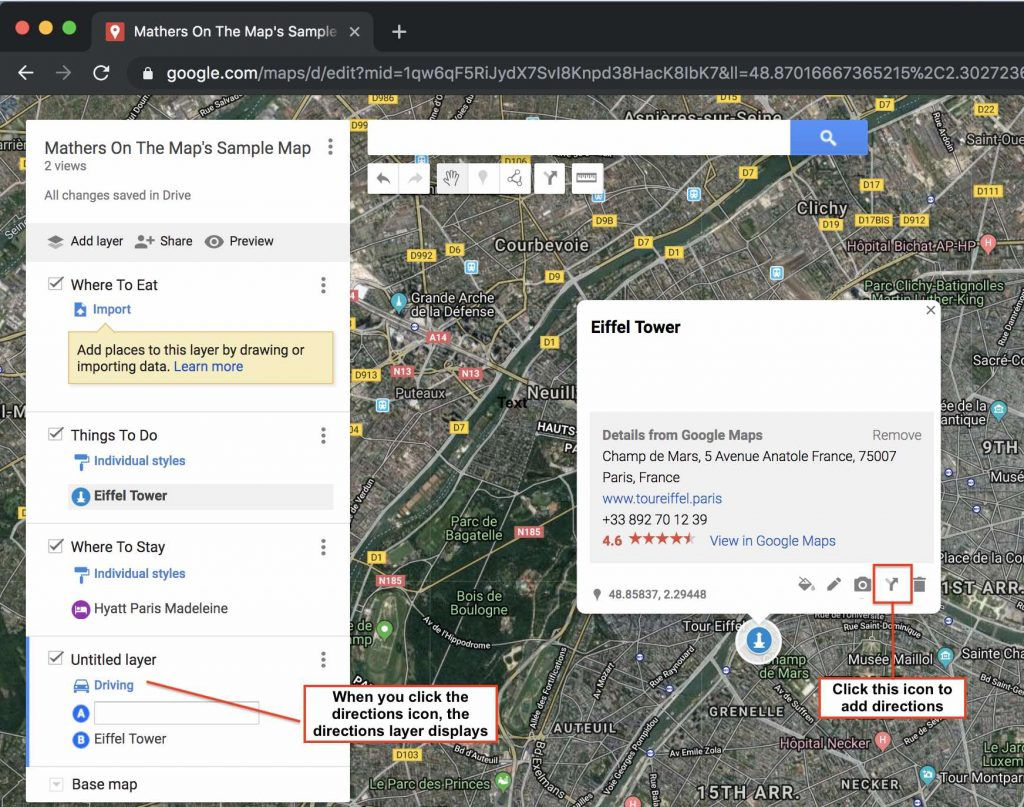
Directions connect points, useful for showing routes between locations or service paths.
- Select the “Draw a line” tool (arrow icon) in the toolbar.
- Choose “Add driving route,” “Add biking route,” or “Add walking route.”
- Click starting and ending points on the map. Google auto-generates the route.
- Add multiple segments for complex paths (e.g., a delivery route visiting several points).
- Edit the line style (color, thickness) and add descriptions.
This feature enhances maps for user navigation, indirectly boosting SEO through better engagement.
Screenshot of adding directions:
Step 5: Styling and Customizing Your Map
- Style layers: In the layer menu, select “Uniform style” or “Style by data column” to color-code based on categories (e.g., permanent vs. temporary sites).
- Change base map: Click “Base map” to select styles like satellite or terrain for better visualization.
- Add lines/polygons: Use drawing tools for areas like service zones.
- Label data: Enable labels from your data columns for clarity.
Step 6: Sharing and Embedding for SEO Benefits
- Click “Share” to make the map public or share with specific users.
- For embedding: Set to public, then select “Embed on my site” from the menu. Copy the HTML code and add it to your website.
- Export as KML: Download for use in other tools or as a citation file.
- Link back to your GBP: Include your GBP URL in the map description.
Sharing custom maps creates additional online mentions, acting as unstructured citations.
Tips for SEO Optimization with My Maps
- Use keywords in titles and descriptions (e.g., “Seattle Coffee Shops Locations”).
- Embed on high-traffic pages of your site.
- Share on social media and directories for backlinks.
- Update regularly to keep data fresh.
- Limit data points to 2,000 for performance.
Common Challenges and Best Practices
- NAP Consistency: Always match your GBP exactly to avoid penalties.
- Duplicate Listings: Use tools like Google Search Console to identify and merge duplicates.
- Monitoring: Track rankings with tools like Google Analytics or SEMrush.
- Avoid Over-Optimization: Don’t spam citations; focus on reputable sources.
- Mobile Optimization: Ensure maps are responsive for mobile users.
Conclusion
By mastering Google Map citations through GBP optimization and custom My Maps creation, you can significantly enhance your local SEO. The ability to add multiple layers, points, and directions not only visualizes your business ecosystem but also generates valuable online signals for Google. Start small—claim your GBP, build core citations, and create your first custom map today. With consistent effort, you’ll see improved visibility, more foot traffic, and higher conversions.
For the latest updates, refer to Google’s official resources, as features evolve.
- NAP is an acronym for Name, Address, and Phone number. The NAP for your business needs to be correct and consistent when optimizing your website and online presence for local search because Google values accurate information for its users.
↩︎